





DAWSON Electronic Filing Instructions

Here is a collection of useful guides to help you navigate and utilize DAWSON, the U.S. Tax Court's electronic filing and case management system.
DAWSON How-To-Guides
Before starting the e-filing process, please review the helpful tips provided below. They will instruct you in what is needed and how to go about filing your petition electronically in DAWSON (Docket Access Within and Secure Online Network), the Court’s electronic filing and case management system. For more detailed instructions, refer to the DAWSON Electronic Filing Instructions.
Check the Deadline for Filing
You may have received a notice in the mail from the Internal Revenue Service (IRS). In most cases, the Court must receive your electronically filed Petition no later than 11:59 pm Eastern Time on the last date to file. Petitions received after this time may be untimely and your case may be dismissed.
Before You Electronically File a Petition
Before starting a case and filing a Petition with the Court, you can prepare forms and documents in advance. After the petition has been processed, you'll be able to log in at any time to view the status and take action in the case
- Complete the Petition
- This is the document that explains why you disagree with the Internal Revenue Service (IRS). There are three methods to file the Petition:
- Answer some questions online and have DAWSON create a Petition document for filing with the Court.
- Complete and upload the Court's standard Petition form. Petition form (T.C. Form 2)
- Upload your own Petition that complies with the requirements of the Tax Court Rules of Practice and Procedure.
- If you choose to upload a Petition:
- Do NOT put your Social Security number, Taxpayer ID number, or Employee ID number on the Petition.
- Do NOT attach any other documents (such as tax returns, copies of receipts, or other types of evidence) to your Petition.
- Do NOT include names of minor children or financial account numbers.
- This is the document that explains why you disagree with the Internal Revenue Service (IRS). There are three methods to file the Petition:
- If you are filing on behalf of a business (this includes a corporation, partnership, or LLC), Corporate Disclosure Statement (Form 6).
- Upload IRS Notice(s)
- If you received one or more Notices from the IRS:
- You will be asked to upload a PDF of the Notice(s) if you received one.
- Remove or block out (redact) Social Security Numbers (SSN), Taxpayer Identification Numbers (TIN), or Employer Identification Numbers (EIN) on a COPY of the IRS Notice(s) or in a manner that does not permanently alter the original IRS Notice(s).
- The Notice(s) will be part of the case record.
- If you received one or more Notices from the IRS:
- Confirm your identity
- You'll be asked to complete and upload a Statement of Taxpayer Identification Number (STIN) form. This document is sent to the IRS to help them identify you, but it's never visible as part of the case record. This is the only document that should contain your Social Security Number (SSN), Taxpayer Identification Number (TIN), or Employee Identification Number (EIN).
- Download and complete the Statement of Taxpayer Identification Number. Download the form and fill it out to submit it.
- Pay the $60 filing fee
- After you submit your case, you'll be asked to pay a $60 filing fee.
- You may pay online or mail a check/money order.
- File once. Do NOT file a Petition both electronically and by mail.
File a Petition Electronically in DAWSON
Create a DAWSON Account
If you have not yet set up a DAWSON account, create a new account.
- Go to DAWSON.
- Click Log In at the top right.
- Click Sign Up at the bottom of the login screen.
- Follow the prompts.
- For more detailed instructions on creating a new account, refer to the DAWSON Electronic Filing Instructions.
Start a Case
Once you have created your account, you can file the petition electronically in DAWSON.
- Review the information provided in the What to Expect When Filing a Case Online section.
- Select the Start a Case button at the bottom of the page.
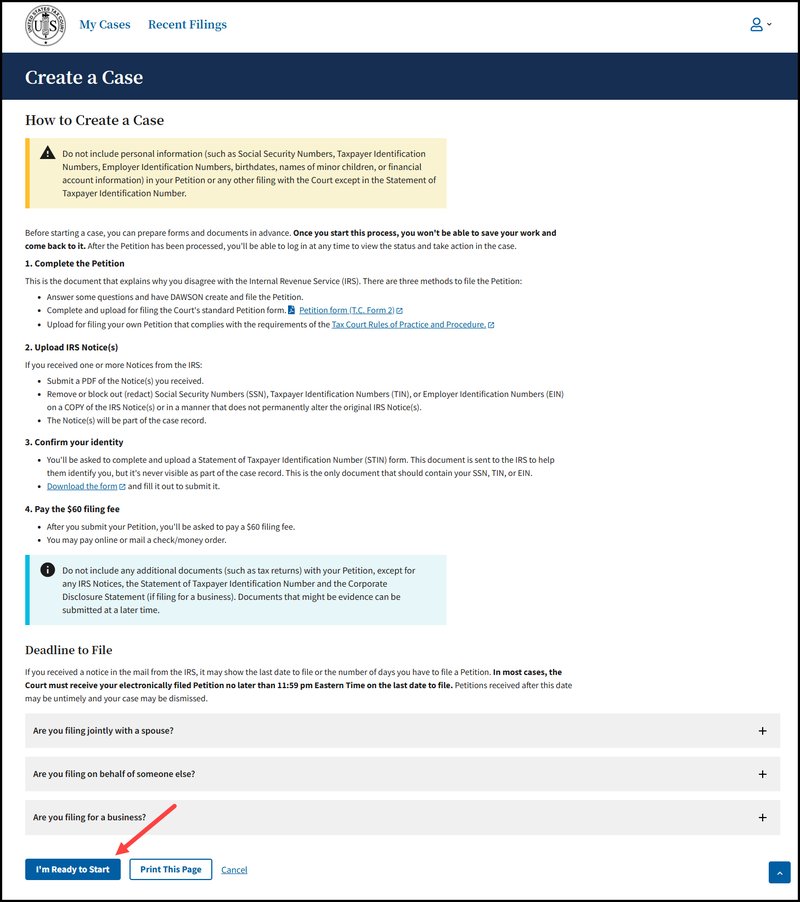
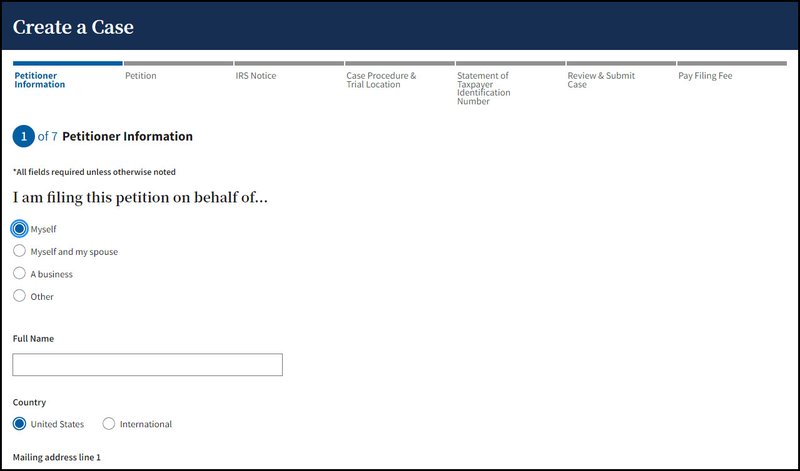
Follow the prompts. There will be 7 steps to complete the Create a Case Process. All fields are required unless noted as optional.
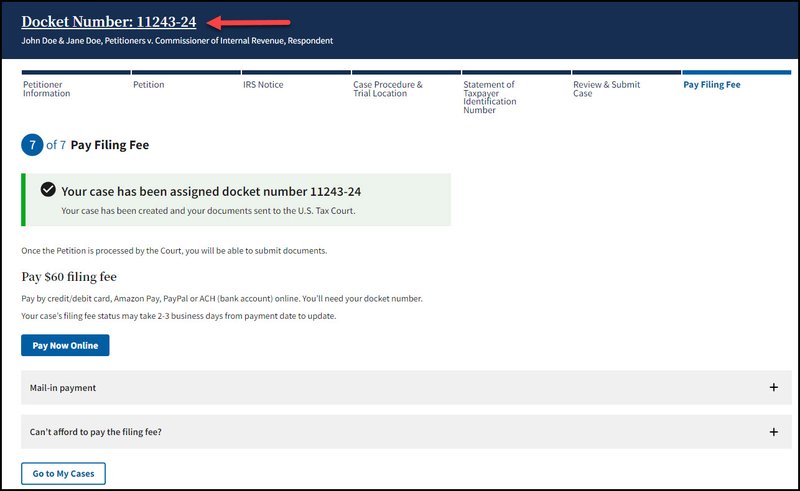
- Once your Petition is submitted, you will be assigned a Docket Number and given some information about what to expect next.
- For more detailed information on filing a Petition electronically, refer to the DAWSON Electronic Filing Instructions
Electronically File Documents and Other Actions in DAWSON
You will be able to log in to DAWSON at any time and view your case. In addition, you can file other documents, update your contact information, and view documents in your case that are filed by the Court or other parties. Refer to the DAWSON Electronic Filing Instructions for more detailed instructions.
Filing Fees are required to submit a petition. Filing fee information can be found on the Court's Fee page
Practitioners
- As a practitioner, you can update your contact information by clicking on the Person Icon and then selecting My Account in the upper right corner.

- Updating your contact information will automatically generate a Notice of Change of Address, Notice of Change of Phone Number, or Notice of Change of Address and Phone Number that will be filed and served in each of your open cases, and any case closed within the past 6 months.
- If you have changed employers (IRS to private practice/private practice to IRS), contact admissions@ustaxcourt.gov to have your employer updated in DAWSON.
- REMINDER: Each person admitted to practice before the Court shall promptly notify the Court of any change in contact information. Rule 200(e), Tax Court Rules of Practice and Procedure.
Petitioners
Updating Petitioner Account Login and Service Email Address
- Petitioners who wish to update the login and service email address for a DAWSON account should click on the Person Icon and then My Account in the upper right corner of the DAWSON screen.

- Input your new email address and click Save.
- A verification email from noreply@dawson.ustaxcourt.gov will be sent to your new email address. If you don’t see it, check your junk/spam folder. You must verify your new email address to change it in DAWSON. After 24 hours, the verification link will expire.
- Note: Changing the DAWSON account email address impacts the whole account, not just the email address for a particular case.
Updating Petitioner Mailing Address and Phone Number
- A petitioner’s mailing address and phone number can be updated by clicking the Edit link by the petitioner’s name under the Case Information tab within a case.
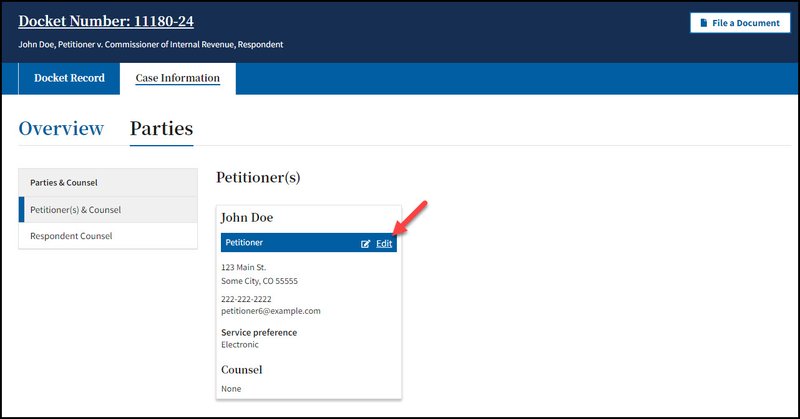
- Updating a petitioner’s mailing address or phone number will automatically generate a Notice of Change of Address, Notice of Change of Phone Number, or Notice of Change of Address and Phone Number in that specific case.
- If a petitioner has more than one case, the petitioner’s mailing address and phone number will need to be updated separately in each of their cases.
To search for a case in DAWSON, go to the DAWSON homepage. You can search for a case by Petitioner Name or Docket Number on the Case tab.
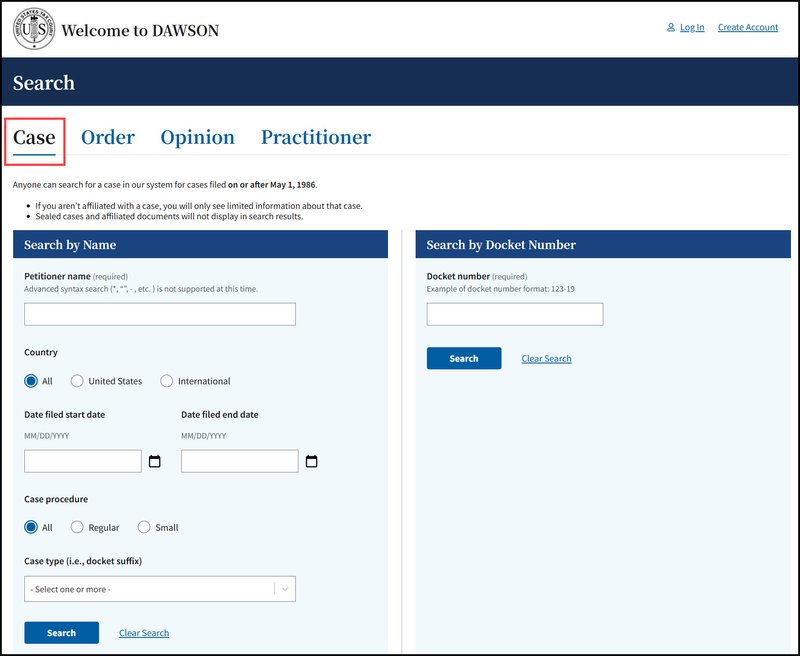
Search by Docket Number:
- Go to the DAWSON homepage.
- To search for a case by Docket Number, you must include the dash in the Docket Number (e.g., 123-18).
- You may, but do not have to, include the letter suffix (S, L, SL, R, X, D, or P) of the Docket Number to find a case.
- When you enter a Docket Number that matches a case in the system, that case will display. If you enter a Docket Number that has no matching case, you will get a “No Matches Found” message.
Search by Name:
- Go to the DAWSON homepage.
- To search for a case by petitioner name, you must enter the petitionerʼs full or last name. Partial name searches (e.g., entering “Ron” for Ronald) are not currently supported.
- You can improve your search results by filtering the Country, State, Date filed start date, Date filed end date, Case procedure, or Case type (i.e. docket suffix) to further refine your search. If the United States is selected, U.S. Territories and military bases are included. These fields are not required but can be used in any combination to refine results.
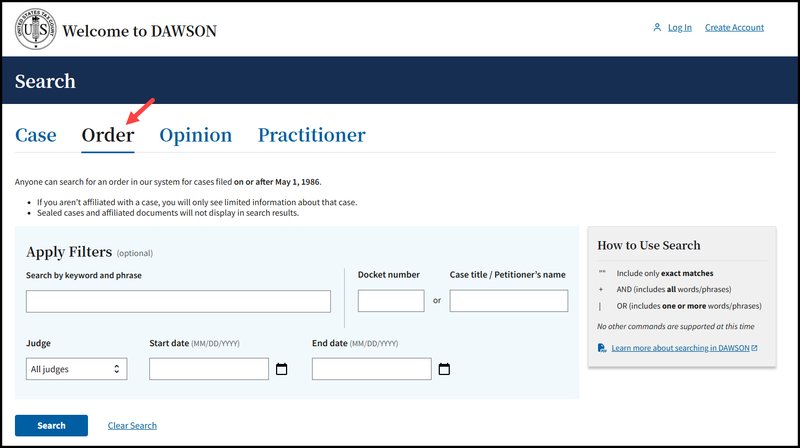
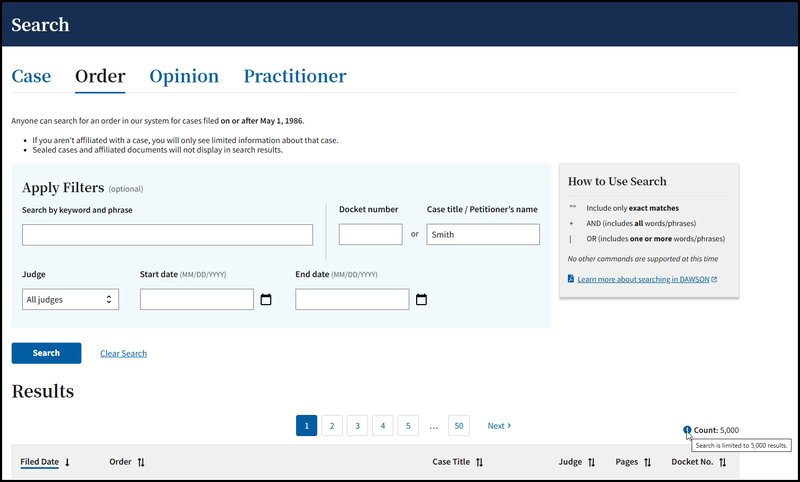
An Order is a written direction or command issued by a Judge. Each day's Orders are posted on the Court's website, www.ustaxcourt.gov, under 'Today's Orders' in 'Orders & Opinions'. To search for an order, you can search by a keyword or phrase. In addition, you may also narrow your search results by adding in a specific Docket number, Case Title/Petitioner's name, the Judge who issued the order, or by including a specific date or date range.
The steps to access Order Search depends on the role you have in DAWSON.
Practitioners
- Log in to your DAWSON account
- Click on the Advanced Search URL in the upper right corner of your dashboard.
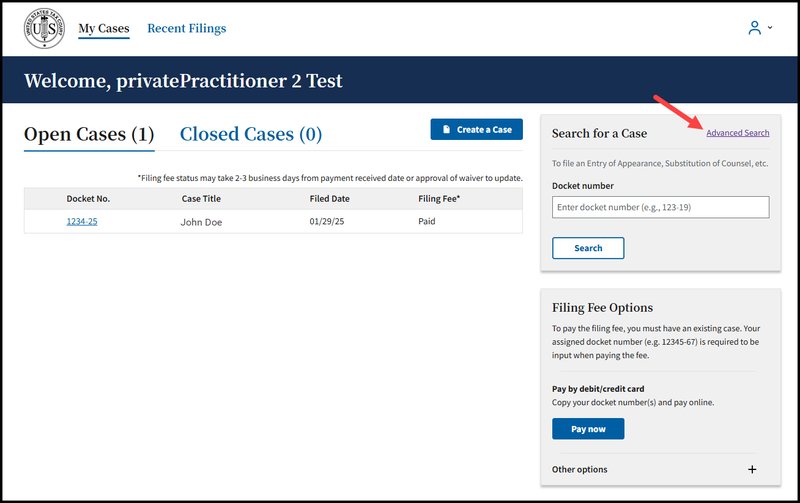
- Click on the Order tab
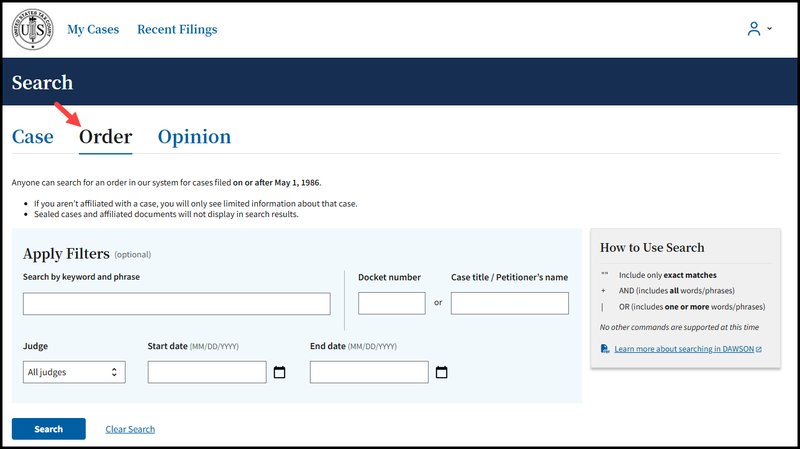
How to Find an Order
- Search orders with a keyword or phrase
- When search is initiated from the keyword or phase area, DAWSON will include in the search:
- The case caption
- The content of the order
- The order title
- For exact matches, be sure to include quotation marks around your search term.
- For example: Search "innocent spouse" for results containing that exact phrase.
- For example: Search "innocent spouse" for results containing that exact phrase.
- Do not enter quotation marks for searches that you do not want exact matches for.
- For example: If you enter Smith for your search, results will include terms that include Smith, as well as Smithson.
- For example: If you enter Smith for your search, results will include terms that include Smith, as well as Smithson.
- When search is initiated from the keyword or phase area, DAWSON will include in the search:
- Use Connectors ( | , + ) with keywords/phrases.
- You can use connectors in combination with the exact keyword or phrase search.
- OR (|)
- Use the | (pipe character) to find documents containing one or more of the keywords or phrases.
- The pipe character (|) is usually located above the backslash (\) on your keyboard.
- For example: Search Lien | Levy.
- AND (+)
- Use the + (plus character) to find documents two or more keywords or phrases
- For example: Search Motion for Summary Judgment + "Denied"
- OR (|)
- You can use connectors in combination with the exact keyword or phrase search.
- To search orders by Docket Number:
- Enter a specific Docket Number to narrow searches to within a single Docket number.
- Enter a specific Docket Number to narrow searches to within a single Docket number.
- To search orders by Case title or Petitioner name:
- Enter a specific Case title or Petitioner name in the appropriate box.
- Enter a specific Case title or Petitioner name in the appropriate box.
- To search by Judge:
- Choose a specific Judge's Name from the drop-down menu.
- Note: the default is all Judges.
- To search by date:
- The default is all dates, but you may also choose a custom range of dates.
- When custom dates are selected, you must enter a start date, but you may choose to leave off the end date.
- Total Results
- After you click Search or hit the enter key on your keyboard, you will see how many search results are shown. In the example below, a Case Title search for Smith returned the first 5,000 matches. If the Order that you are looking for is not in the first 5,000 matches, try to refine your search by adding in additional search criteria (date ranges, a specific Judge, etc.)
- DAWSON will load 100 results per page. If you would like to view more results, use the paginator that is located at either the top of the results or the bottom of the page to see the next 100 results.
- After you click Search or hit the enter key on your keyboard, you will see how many search results are shown. In the example below, a Case Title search for Smith returned the first 5,000 matches. If the Order that you are looking for is not in the first 5,000 matches, try to refine your search by adding in additional search criteria (date ranges, a specific Judge, etc.)
Tips & Tricks
- Search is NOT case sensitive.
- If there are no matches, you will receive a message that states 'No Matches Found. Check your search terms and try again.'
- Additional help documentation is available on the DAWSON Order search page if needed.
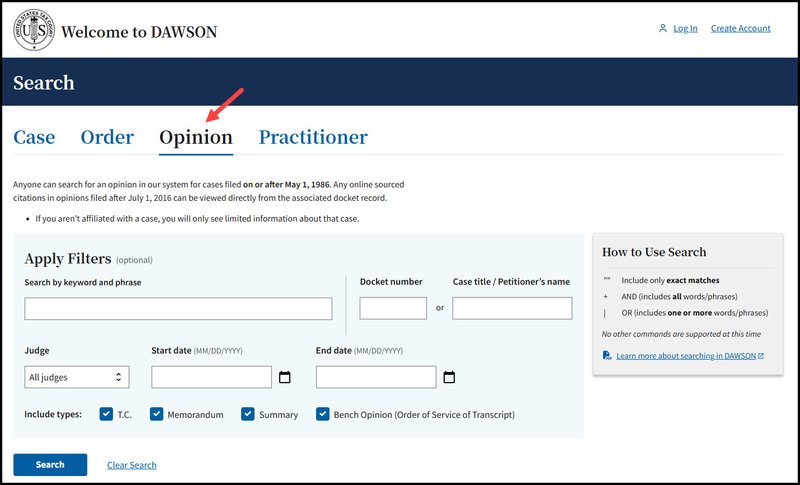
An opinion is the written determination of a Judge on the issues tried and submitted to the Court for decision. Each day's opinions are posted on the Court's website, www.ustaxcourt.gov, in 'Today's Opinions' under 'Orders & Opinions'. If you need to search for an opinion, you can search by a keyword or phrase. In addition, you may narrow your search results by adding in a specific Docket Number, Case Title/Petitioner's name, the Judge who issued the Opinion, or by including a specific date or date range. You may also filter by opinion type.
The steps to access Opinion Search depends on the role you have in DAWSON.
Practitioners
- Log in to your DAWSON account
- Click on the Advanced Search URL in the upper right corner of your dashboard.
- Click on the Opinion tab
How to Find an Opinion
- Search orders with a keyword or phrase
- When search is initiated from the keyword or phase area, DAWSON will include in the search:
- The case caption
- The content of the opinion
- The opinion title
- For exact matches, be sure to include quotation marks around your search term.
- For example: Search "Premium Tax Credit" for results containing that exact phrase.
- For example: Search "Premium Tax Credit" for results containing that exact phrase.
- Do not enter quotation marks for searches that you do not want exact matches for.
- For example: If you enter Smith for your search, results will include terms that include Smith, as well as Smithson.
- For example: If you enter Smith for your search, results will include terms that include Smith, as well as Smithson.
- When search is initiated from the keyword or phase area, DAWSON will include in the search:
- Use Connectors ( | , + ) with keywords/phrases.
- You can use connectors in combination with the exact keyword or phrase search.
- OR (|)
- Use the | (pipe character) to find documents containing one or more of the keywords or phrases.
- The pipe character (|) is usually located above the backslash (\) on your keyboard.
- For example: Search "fraud" | "sanctions".
- AND (+)
- Use the + (plus character) to find documents two or more keywords or phrases
- For example: Search "in-kind + "distribution" + "IRA"
- OR (|)
- You can use connectors in combination with the exact keyword or phrase search.
- To search opinions by Docket Number:
- Enter a specific Docket Number to narrow searches to within a single Docket number.
- Enter a specific Docket Number to narrow searches to within a single Docket number.
- To search opinions by Case title or Petitioner name:
- Enter a specific Case title or Petitioner name to search for.
- Enter a specific Case title or Petitioner name to search for.
- To search by Judge:
- Enter a specific Judge's name.
- Note: the default is all Judges.
- To search by date:
- The default is all dates, but you may also choose a custom range of dates.
- When custom dates are selected, you must enter a start date, but you may choose to leave off the end date.
- To search by Opinion Type:
- All opinion type checkboxes are selected by default.
- Uncheck the opinion types so that only the opinion types that you want to search for are left checked.
- Total Results
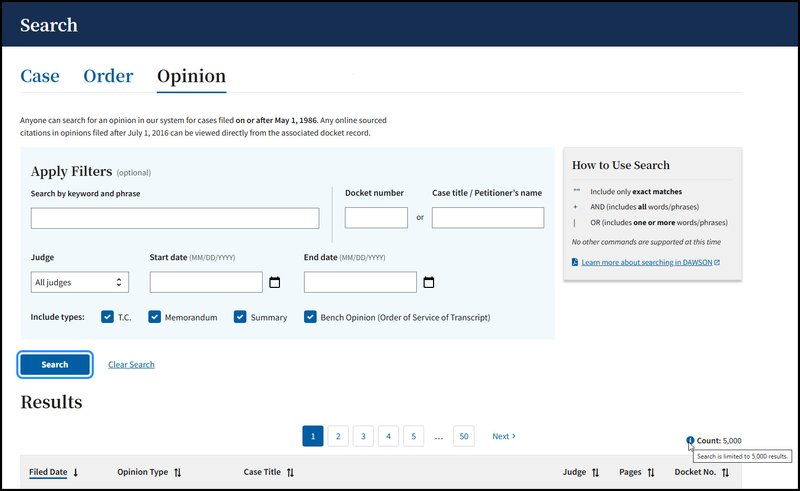
- After you click Search or hit the enter key on your keyboard, you will see how many search results are shown. In the example below, a keyword search for Smith returned the first 5,000 matches. If the opinion that you are looking for is not in the first 5,000 matches, try to refine your search by adding in additional search criteria (date ranges, a specific Judge, etc.).
- DAWSON will load 100 results per page. If you would like to view more results, use the paginator that is located at either the top of the results or the bottom of the page to see the next 100 results.
Tips & Tricks
- Search is NOT case sensitive.
- If there are no matches, you will receive a message that states 'No Matches Found. Check your search terms and try again.'
- Additional help documentation is available on the DAWSON Opinion search page if needed.
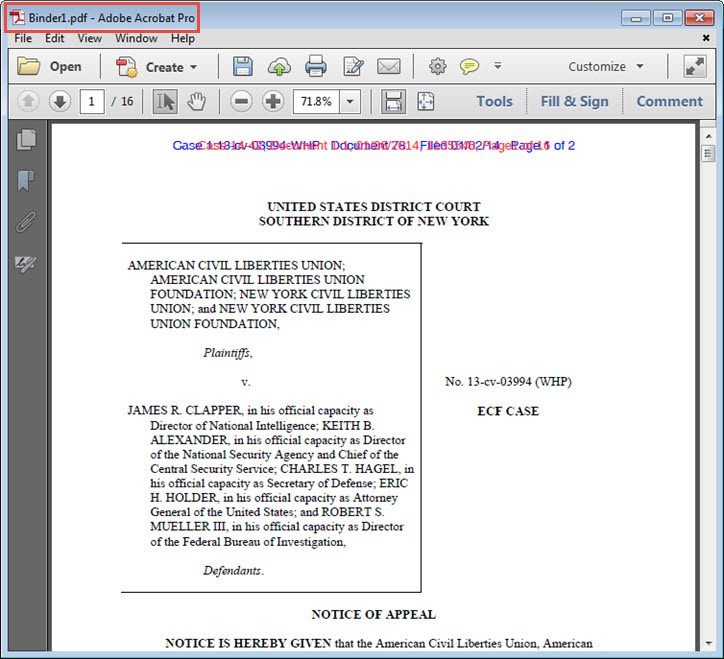
These instructions apply only to Adobe Acrobat Professional and Standard. A user utilizing other software to create PDFs must follow the software vendor's instructions for creating a single PDF from multiple PDFs.
Merging Two or More PDF Documents
To merge two or more PDF documents:
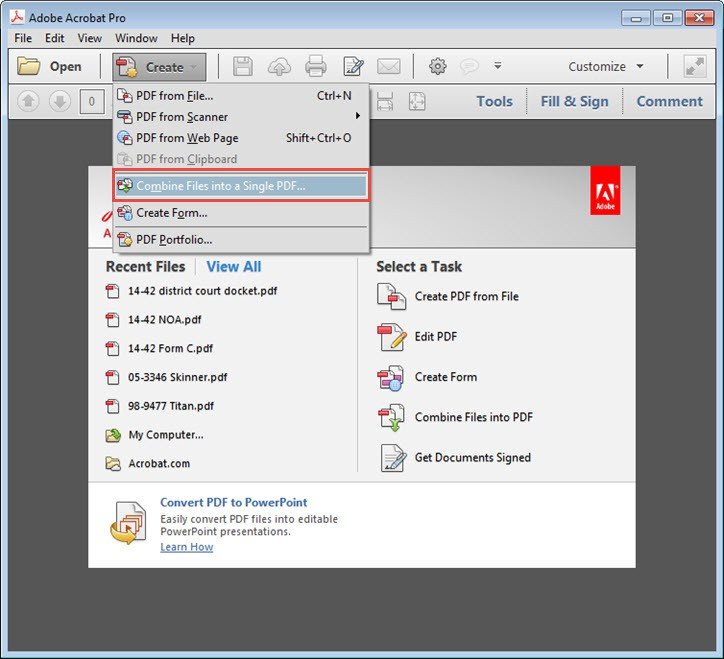
- With Adobe Acrobat open, click on the Create menu.
- Select the menu item "Combine Files into a Single PDF ... "
- A new window will open. Click on the "Add Files ... " menu.
- Select the "Add Files ... " option from the drop-down menu.
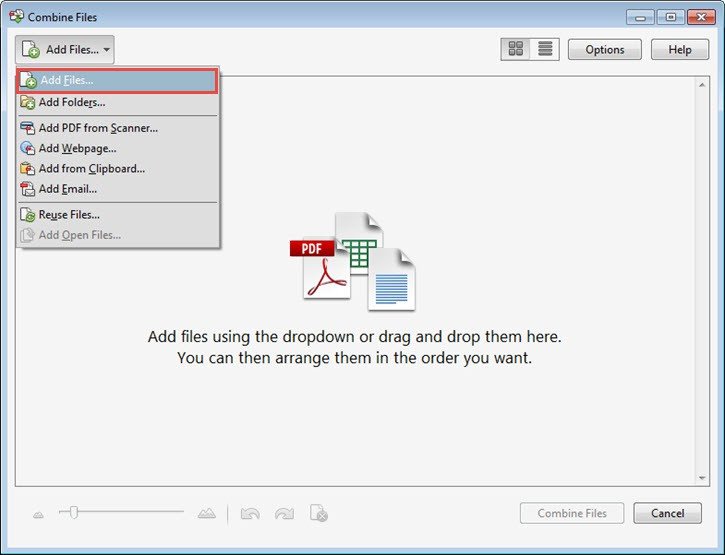
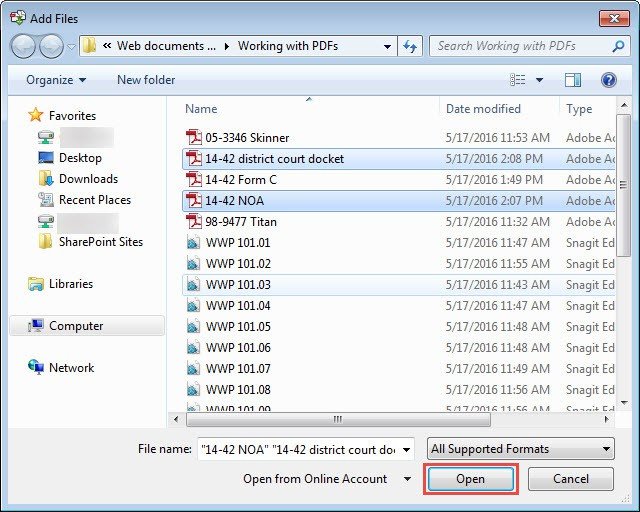
- Select each file to be combined by clicking on the file name in the Add Files dialog box. Holding down the Shift or Ctrl key when clicking on a file name permits a user to add more than one file at a time.
- When finished selecting file names, click Open at the bottom of the dialog box.
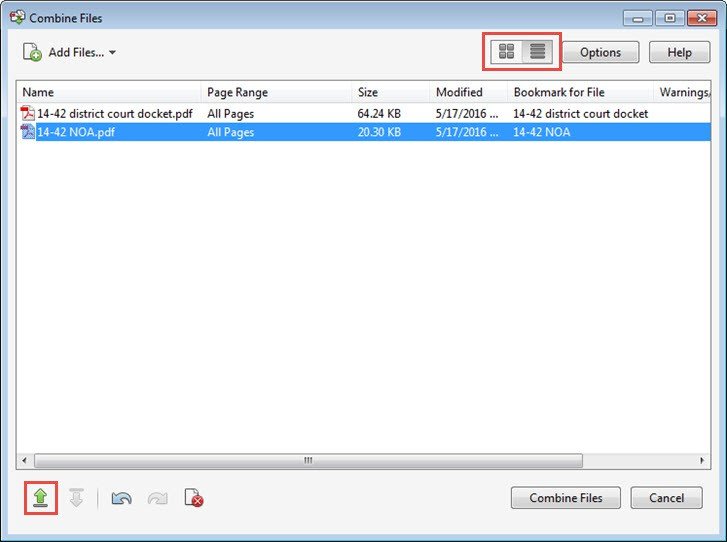
- The selected files now appear in the Combine Files window in Adobe Acrobat. The files may be viewed as thumbnails or in a list (as shown below) by selecting the view type at the top right of the window.
- To change the order in which the files appear in the merged combined document, highlight the name of the file to appear first, then click the up arrow at the bottom left of the window to move that file to the top of the list.
- Once you are satisfied with the order of your documents, click on Combine Files button.
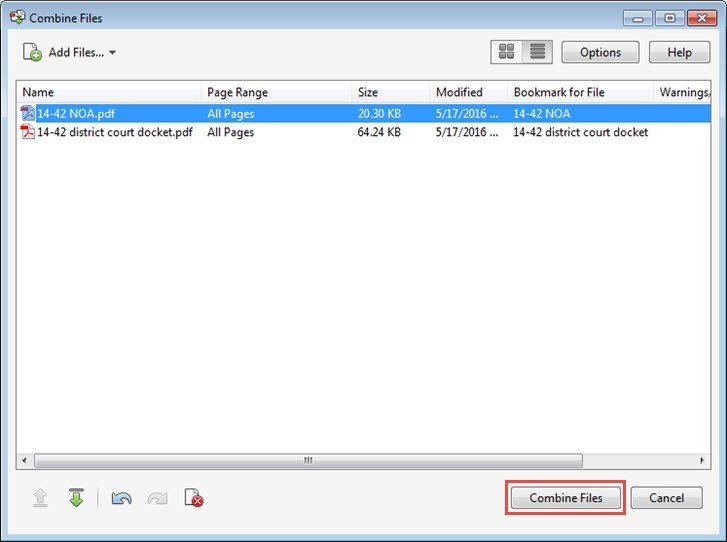
- The files you selected in the previous step will be combined into one document.
Merging Two or More Documents in Multiple Formats
If a user wishes to combine documents that currently exist in various formats into a single PDF, the easiest process is to print out all the documents and scan them into a single document from a scanner that creates PDFs.
Your dashboard is your main landing page once you are signed in to DAWSON.
Viewing Your Dashboard
- Before you file a Petition with the Court, your dashboard will provide information and links to help you with the Petition filing process:
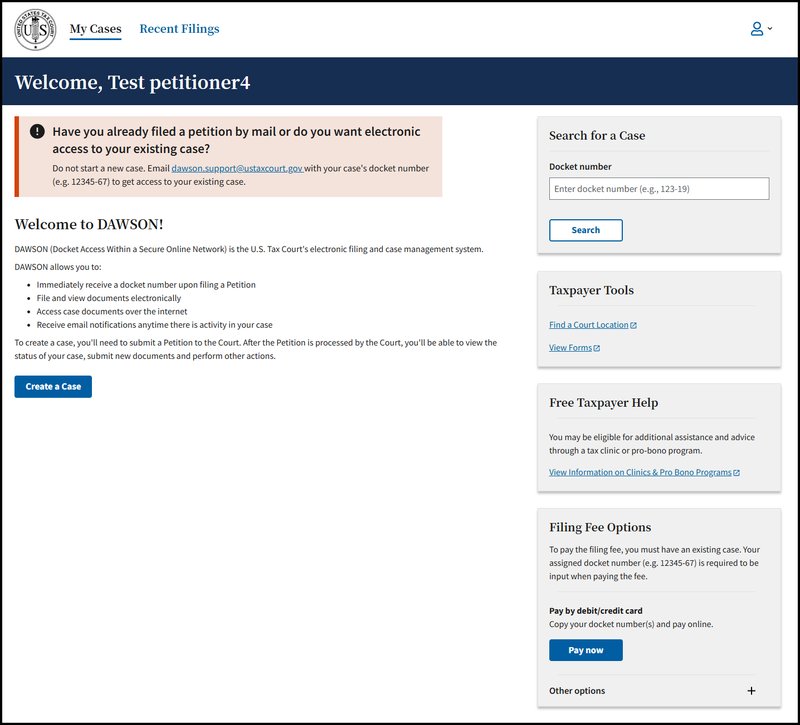
- Helpful Links
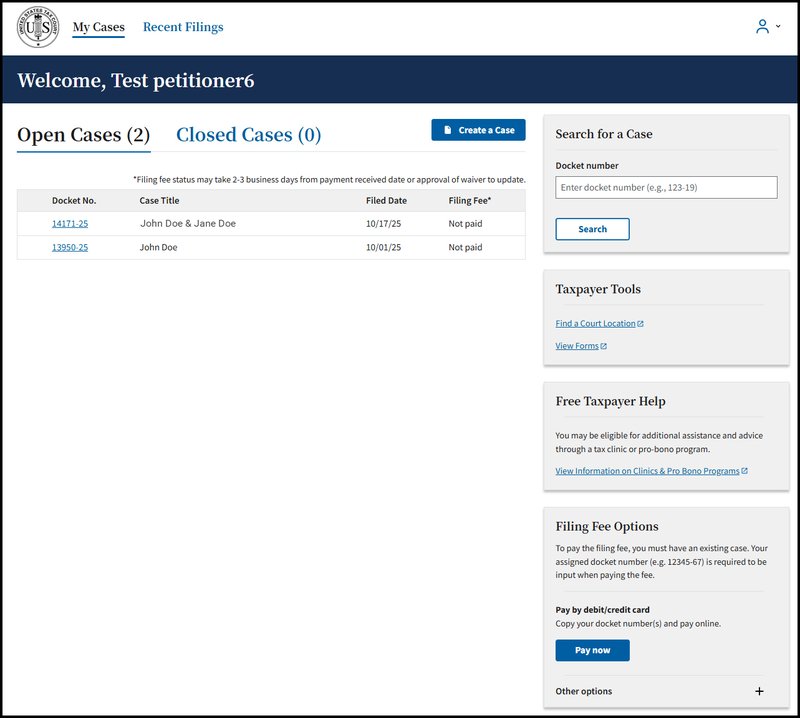
- Once you have filed a Petition, you can view all of your cases (open and closed) on your dashboard:
Tips & Tricks
- To return to your dashboard from anywhere within DAWSON, click My Cases.
- Open cases and closed cases are displayed on separate tabs. The number of cases for each is displayed in parentheses.
- The default display is 20 cases. To view more, click the Load More button.
- It is typical for a self-represented (pro se) petitioner to have just one case.