Before starting the e-filing process, please review the helpful tips provided below. They will instruct you in what is needed and how to go about filing your petition electronically in DAWSON (Docket Access Within and Secure Online Network), the Court’s electronic filing and case management system. For more detailed instructions, refer to the DAWSON user guides.
Check the Deadline for Filing
You may have received a notice in the mail from the Internal Revenue Service (IRS). In most cases, the Court must receive your electronically filed Petition no later than 11:59 pm Eastern Time on the last date to file. Petitions received after this time may be untimely and your case may be dismissed.
Before You Electronically File a Petition
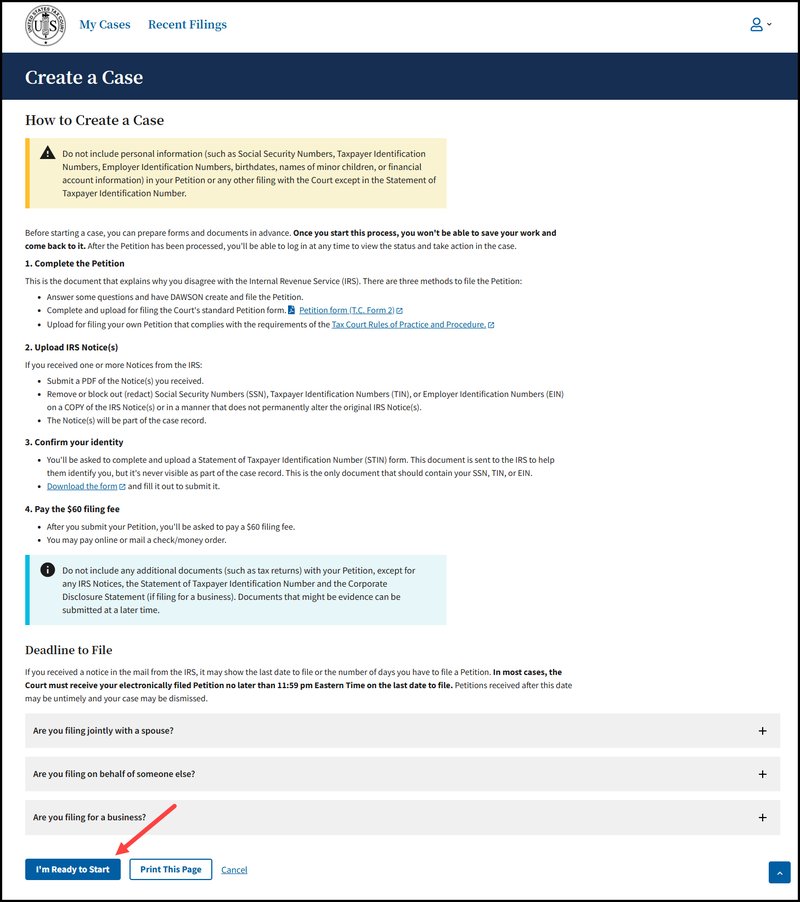
Before starting a case and filing a Petition with the Court, you can prepare forms and documents in advance. After the petition has been processed, you'll be able to log in at any time to view the status and take action in the case
- Complete the Petition
- This is the document that explains why you disagree with the Internal Revenue Service (IRS). There are three methods to file the Petition:
- Answer some questions online and have DAWSON create a Petition document for filing with the Court.
- Complete and upload the Court's standard Petition form. Petition form (T.C. Form 2)
- Upload your own Petition that complies with the requirements of the Tax Court Rules of Practice and Procedure.
- If you choose to upload a Petition:
- Do NOT put your Social Security number, Taxpayer ID number, or Employee ID number on the Petition.
- Do NOT attach any other documents (such as tax returns, copies of receipts, or other types of evidence) to your Petition.
- Do NOT include names of minor children or financial account numbers.
- If you are filing on behalf of a business (this includes a corporation, partnership, or LLC), Corporate Disclosure Statement (Form 6).
- Upload IRS Notice(s)
- If you received one or more Notices from the IRS:
- You will be asked to upload a PDF of the Notice(s) if you received one.
- Remove or block out (redact) Social Security Numbers (SSN), Taxpayer Identification Numbers (TIN), or Employer Identification Numbers (EIN) on a COPY of the IRS Notice(s) or in a manner that does not permanently alter the original IRS Notice(s).
- The Notice(s) will be part of the case record.
- Confirm your identity
- You'll be asked to complete and upload a Statement of Taxpayer Identification Number (STIN) form. This document is sent to the IRS to help them identify you, but it's never visible as part of the case record. This is the only document that should contain your Social Security Number (SSN), Taxpayer Identification Number (TIN), or Employee Identification Number (EIN).
- Download and complete the Statement of Taxpayer Identification Number. Download the form and fill it out to submit it.
- Pay the $60 filing fee
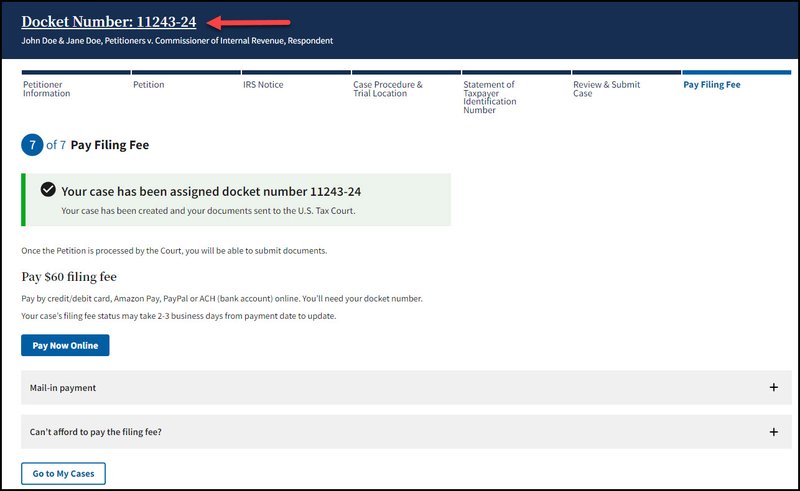
- After you submit your case, you'll be asked to pay a $60 filing fee.
- You may pay online or mail a check/money order.
- File once. Do NOT file a Petition both electronically and by mail.
File a Petition Electronically in DAWSON
Create a DAWSON Account
If you have not yet set up a DAWSON account, create a new account.
- Go to DAWSON.
- Click Log In at the top right.
- Click Sign Up at the bottom of the login screen.
- Follow the prompts.
- For more detailed instructions on creating a new account, refer to the DAWSON user guides.
Start a Case
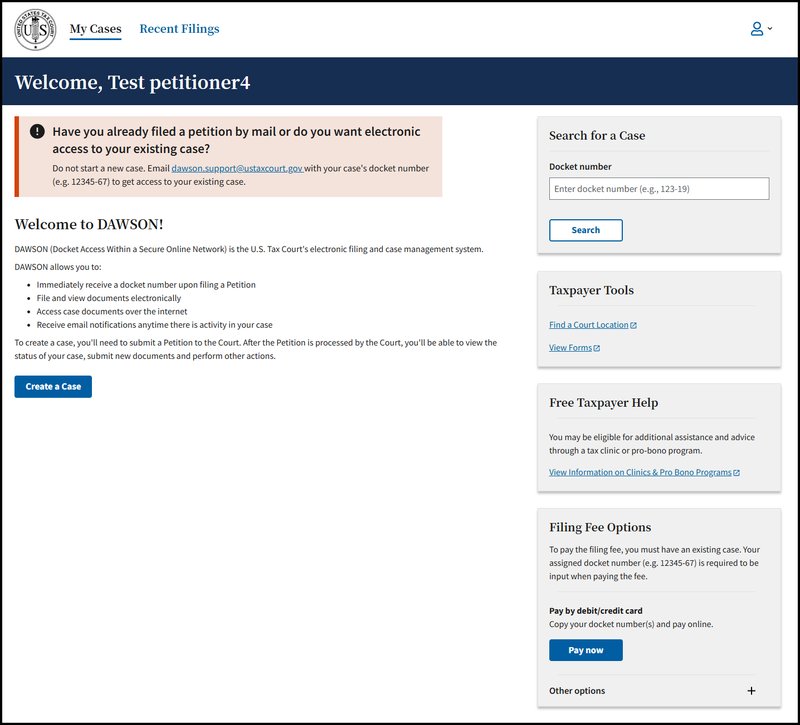
Once you have created your account, you can file the petition electronically in DAWSON.
- Review the information provided in the What to Expect When Filing a Case Online section.
- Select the Start a Case button at the bottom of the page.
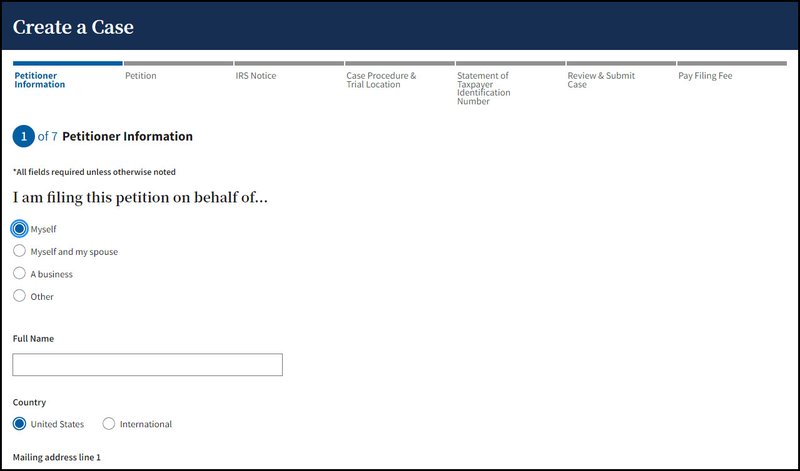
Follow the prompts. There will be 7 steps to complete the Create a Case Process. All fields are required unless noted as optional.
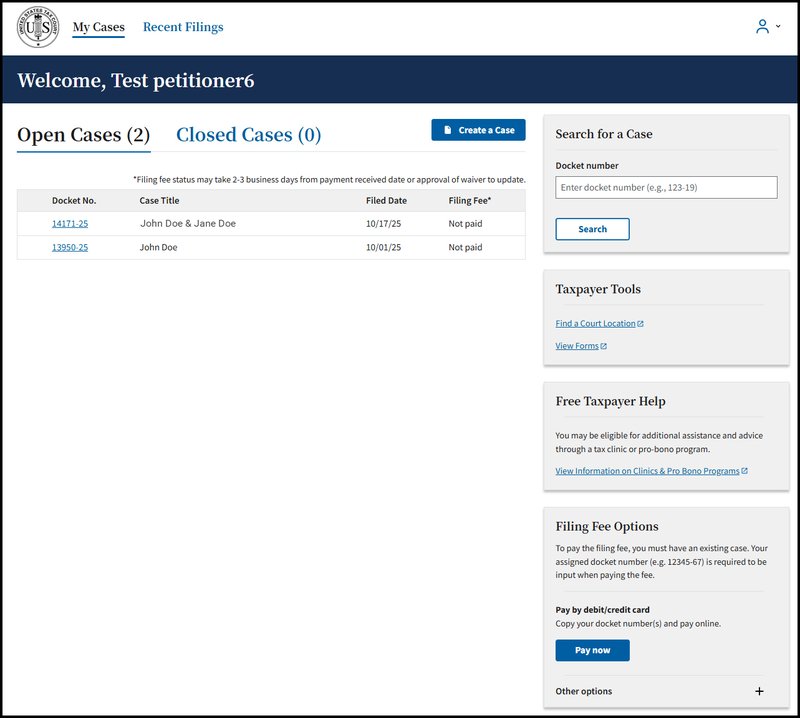
- Once your Petition is submitted, you will be assigned a Docket Number and given some information about what to expect next.
- For more detailed information on filing a Petition electronically, refer to the DAWSON user guides.
Electronically File Documents and Other Actions in DAWSON
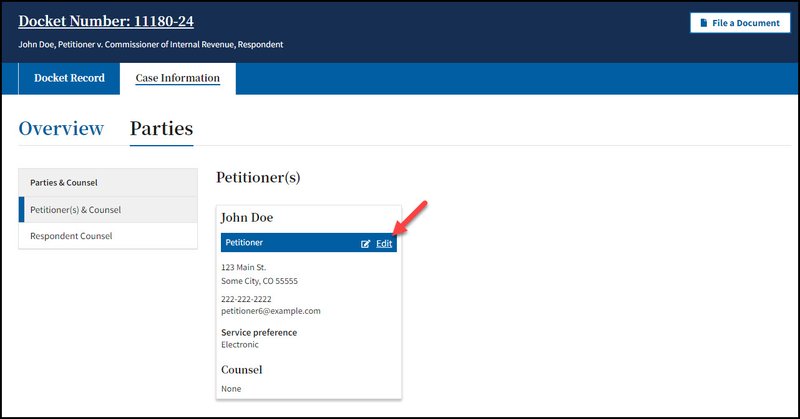
You will be able to log in to DAWSON at any time and view your case. In addition, you can file other documents, update your contact information, and view documents in your case that are filed by the Court or other parties. Refer to the DAWSON user guides for more detailed instructions.